> ## Documentation Index
> Fetch the complete documentation index at: https://docs.quantbe.com/llms.txt
> Use this file to discover all available pages before exploring further.
# Get Data
> Access Market Data from Any Time Point for Strategic Contributions.
## Introduction
The "Get Data" function retrieves historical pricing information for a specific stock, offering a chronological record of its past market performance. This data includes opening and closing prices, high and low values, trading volumes, and other relevant metrics, enabling users to analyze trends, make informed investment decisions, and conduct thorough market research.
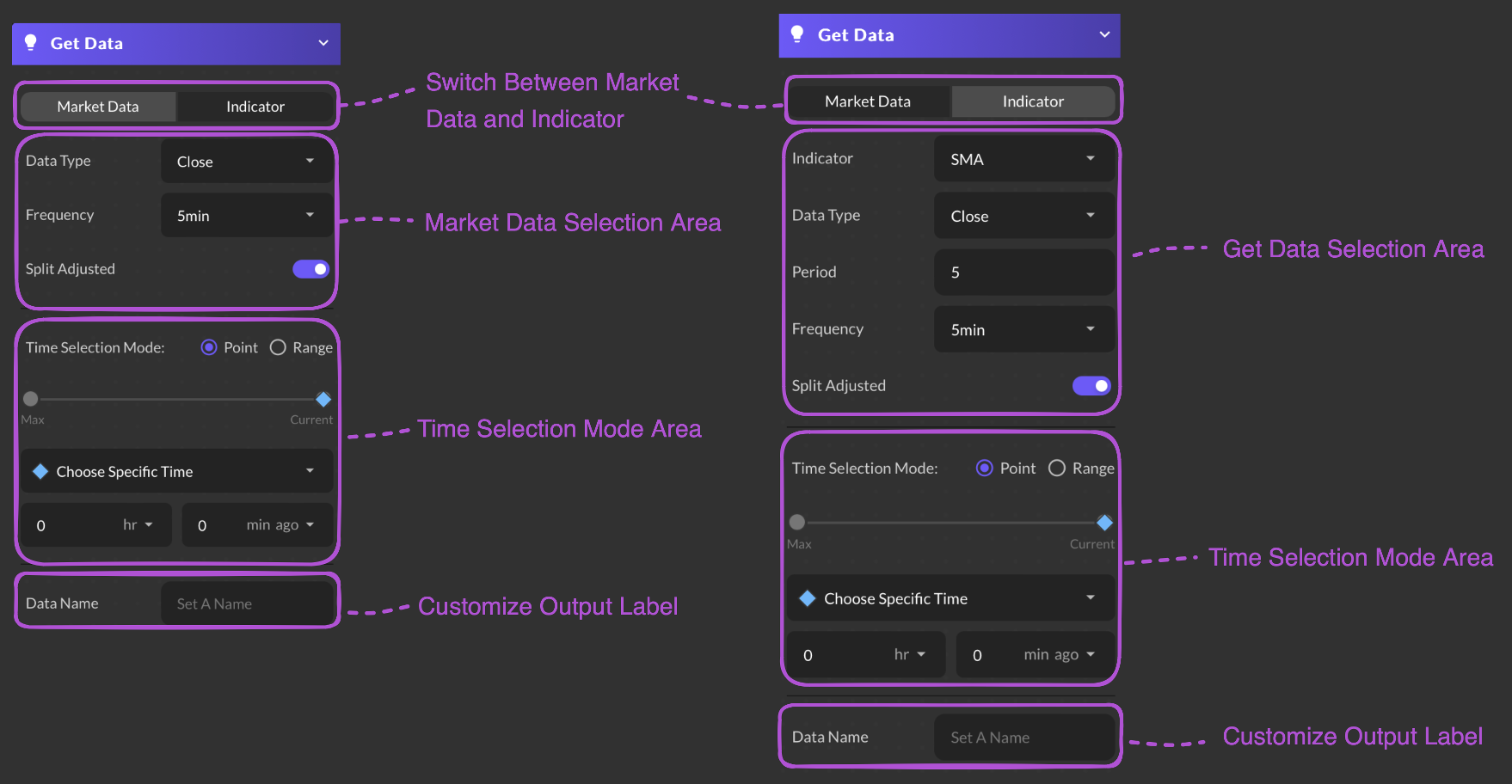 ### Input Parameter Example
Access historical market data.
Choose from OHLCV (Open, Close, High, Low & Volume)
Select a time frequency from the available list.
Choose between split-adjusted or current market price.
Utilize technical indicators.
Select an indicator from the available list.
Choose from OHLCV (Open, Close, High, Low & Volume)
Emter a number to adjust analysis period.
Select a time frequency from the available list.
Choose between split-adjusted or current market price.
Select a time point or time range
* Choose Specific Time
* Choose Defined Time
* Start at Specific Time
* Start at Defined Time
### Input Parameter Example
Access historical market data.
Choose from OHLCV (Open, Close, High, Low & Volume)
Select a time frequency from the available list.
Choose between split-adjusted or current market price.
Utilize technical indicators.
Select an indicator from the available list.
Choose from OHLCV (Open, Close, High, Low & Volume)
Emter a number to adjust analysis period.
Select a time frequency from the available list.
Choose between split-adjusted or current market price.
Select a time point or time range
* Choose Specific Time
* Choose Defined Time
* Start at Specific Time
* Start at Defined Time
* Backward Period
* Forward Period
* End at Defined Time
Select Hour and Minutes from the dropdown list. Max defaults is 250 days.
Users are required to provide a name for their data.