> ## Documentation Index
> Fetch the complete documentation index at: https://docs.quantbe.com/llms.txt
> Use this file to discover all available pages before exploring further.
# Trending
> Tailor Your Success with Pattern function.
## Introduction
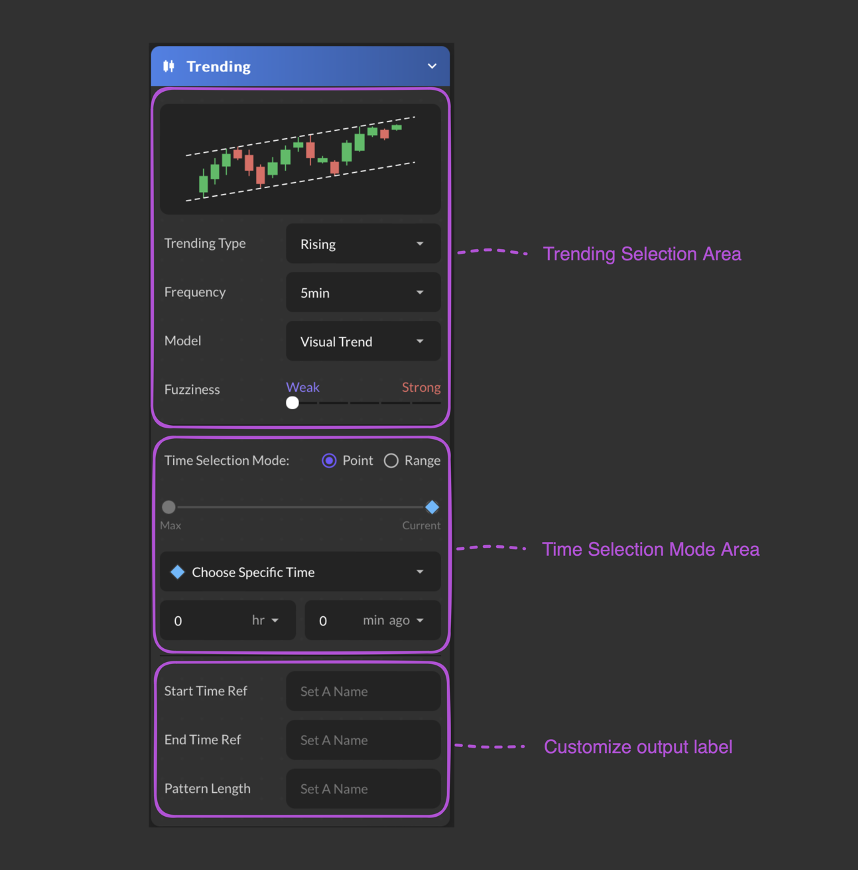
The Trending function within Pattern Functions empowers users to analyze and interpret market trends with precision. By providing granular control over various parameters, users can tailor their trend analysis to suit specific preferences and requirements.
 ### Input Parameter
Choose a Trending Type from the available list.
Select a time frequency from the available list.
Choose a mode from vailable lists.
Adjust the fuzziness from weak to strong.
Select a time point or time range
* Choose Specific Time
* Choose Defined Time
* Start at Specific Time
* Start at Defined Time
### Input Parameter
Choose a Trending Type from the available list.
Select a time frequency from the available list.
Choose a mode from vailable lists.
Adjust the fuzziness from weak to strong.
Select a time point or time range
* Choose Specific Time
* Choose Defined Time
* Start at Specific Time
* Start at Defined Time
* Backward Period
* Forward Period
* End at Defined Time
Select Hour and Minutes from the dropdown list. Max defaults is 250 days.
User assigned name for the pattern's initiation point.
User assigned name for the pattern's conclusion point in time.
User assigned name for the duration of the pattern, indicating the overall time span it encompasses.
## Crossover
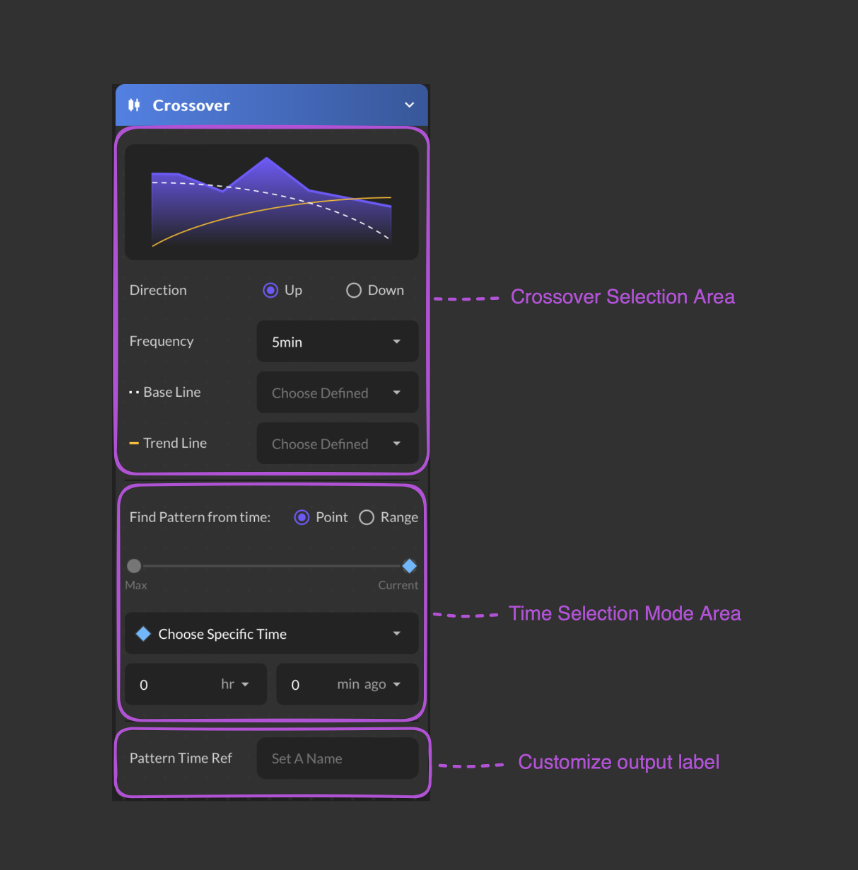
The Crossover function within Pattern Functions offers users the ability to analyze and capitalize on market trends by identifying key points of intersection between different datasets. This function provides users with customizable parameters to fine-tune their analysis and create actionable signals.
 ### Input Parameter
Select a time frequency between Up and Down.
Select a time frequency from the available list.
Choose a predefined data as a base line.
Choose a predefined data as a trend line.
Select a time point or time range
* Choose Specific Time
* Choose Defined Time
* Start at Specific Time
* Start at Defined Time
### Input Parameter
Select a time frequency between Up and Down.
Select a time frequency from the available list.
Choose a predefined data as a base line.
Choose a predefined data as a trend line.
Select a time point or time range
* Choose Specific Time
* Choose Defined Time
* Start at Specific Time
* Start at Defined Time
* Backward Period
* Forward Period
* End at Defined Time
Select Hour and Minutes from the dropdown list. Max defaults is 250 days.
Users are required to provide a name for their data.