> ## Documentation Index
> Fetch the complete documentation index at: https://docs.quantbe.com/llms.txt
> Use this file to discover all available pages before exploring further.
# Strtegy Functions
> Financial Excellence Through Strategic Brilliance.
### Introduction
Stock strategy functions involve defining specific rules and criteria for buying or selling securities based on various technical or fundamental factors. These functions guide investors in making informed decisions, setting entry and exit points, and managing risk within their investment approach. Ultimately, stock strategy functions aim to optimize trading performance and achieve financial objectives in the dynamic and unpredictable stock market.
## Start
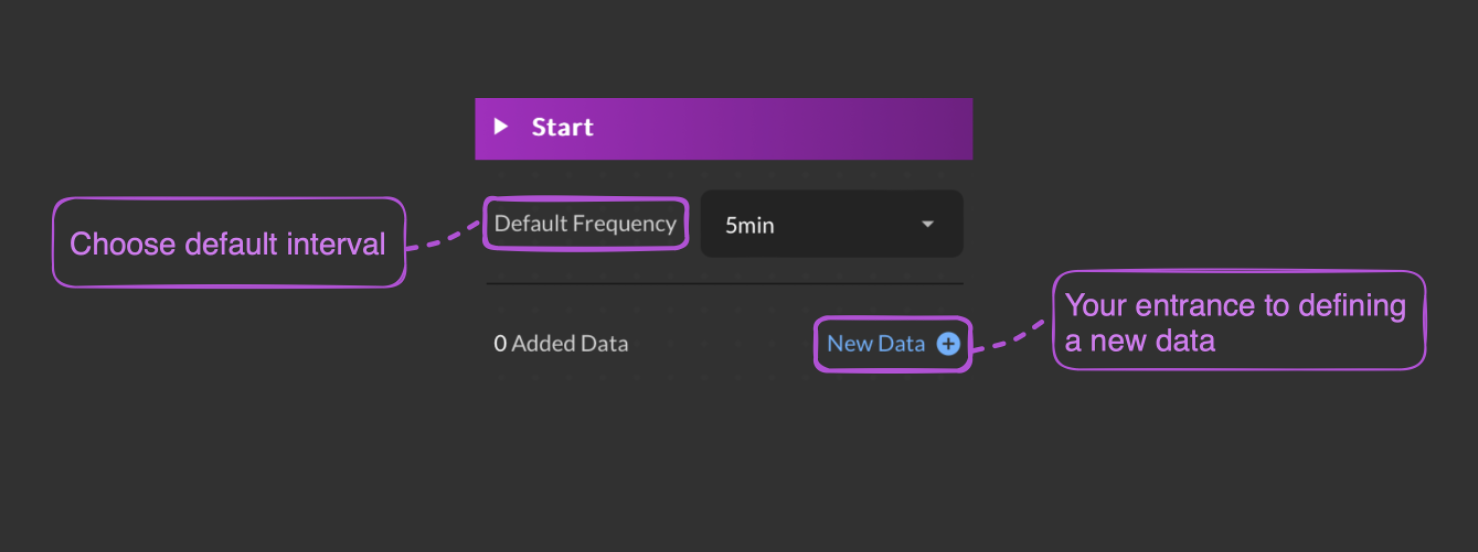
The Start function serves as the designated entry for users initiating the process of strategy creation and backtesting. It offers a quick and convenient way to set default frequencies and add new data effortlessly using the New Data button, streamlining the start of the strategy development journey with efficiency.
**Defualt Frequency**
The default frequency in the “Start” component refers to a predefined frequency, such as 5 minutes, 15 minutes, 30 minutes, 60 minutes, or daily. By setting the default frequency, the frequency value in the “New Data” feature and subsequent functions would automatically synchronize with the preset default frequency.
 **Functionality of the “New Data” Button**
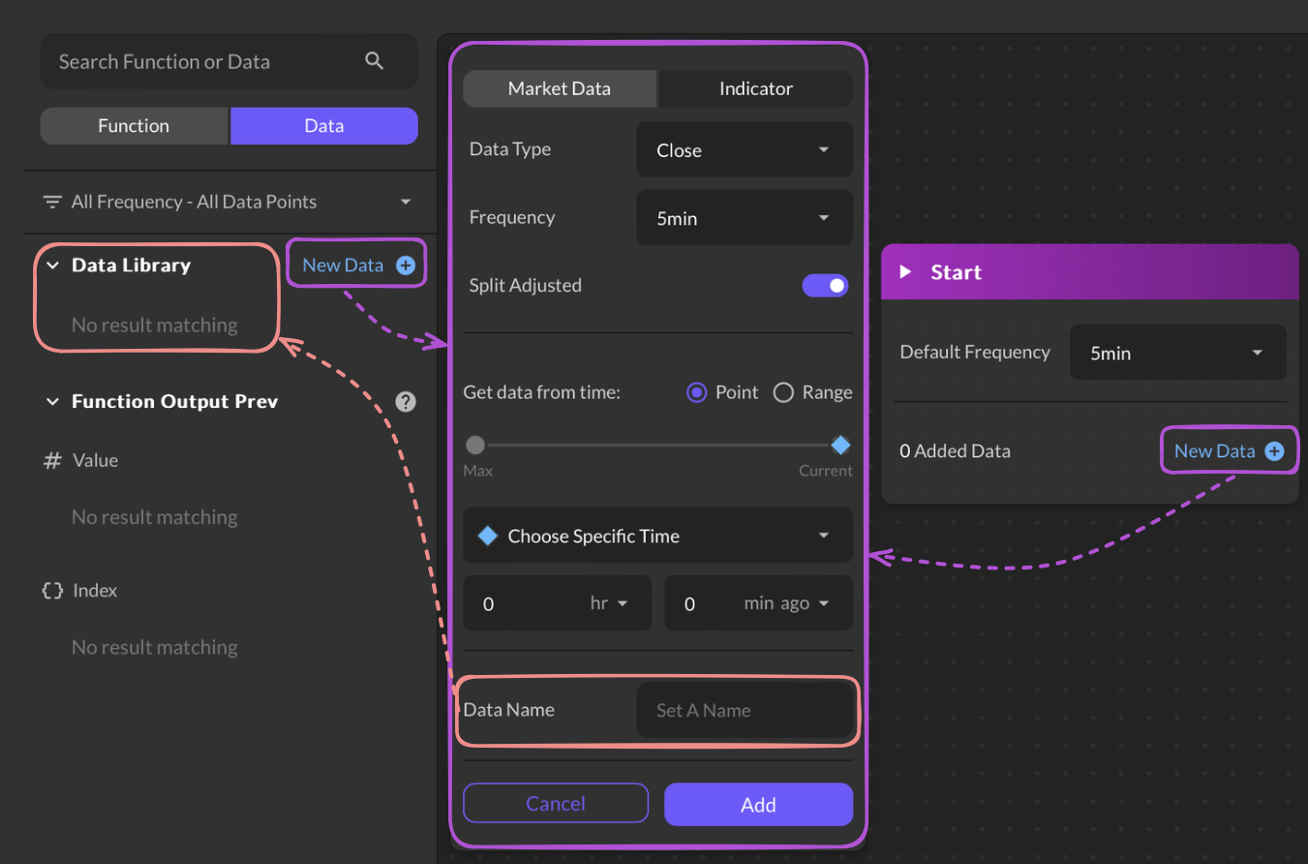
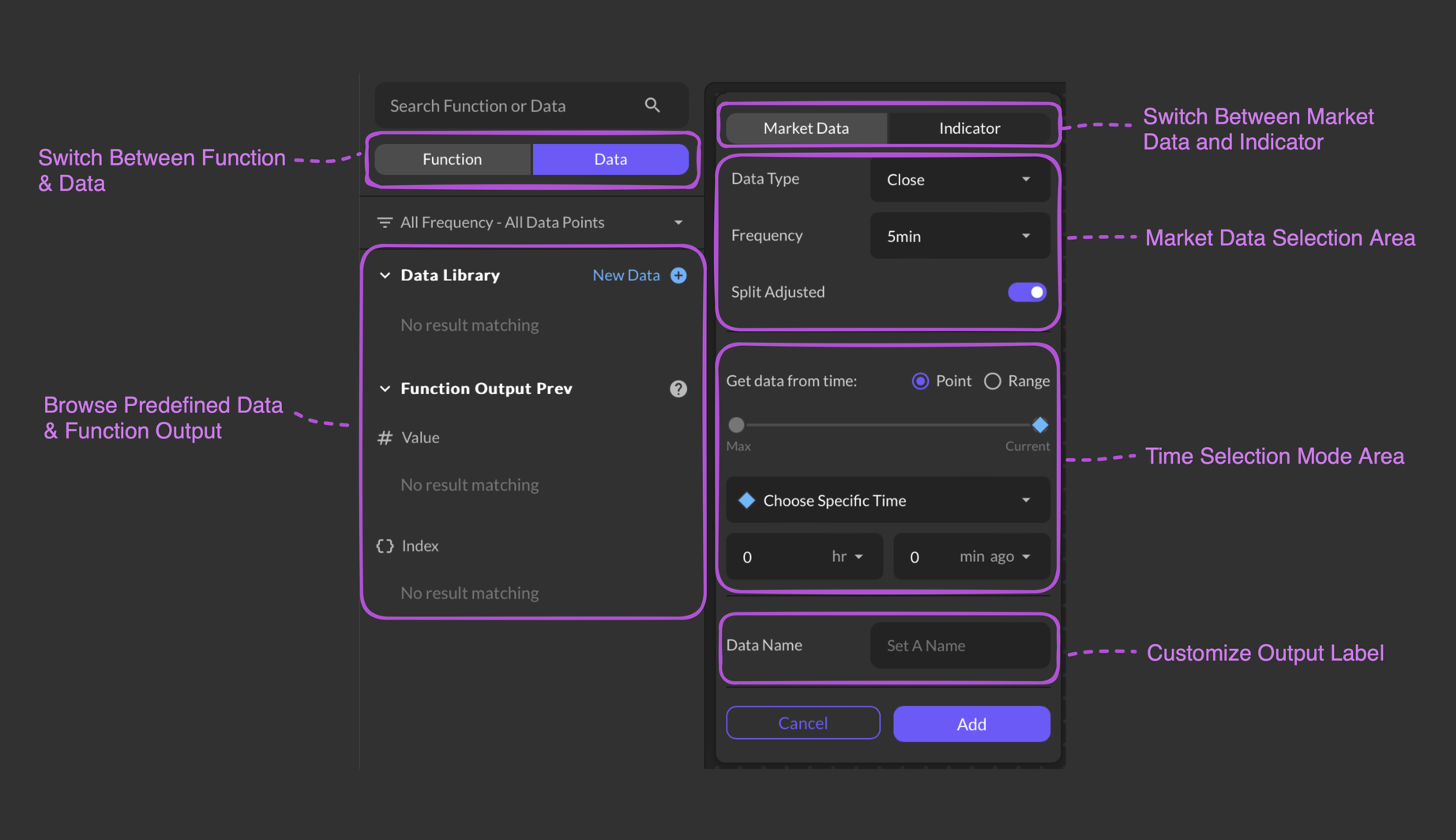
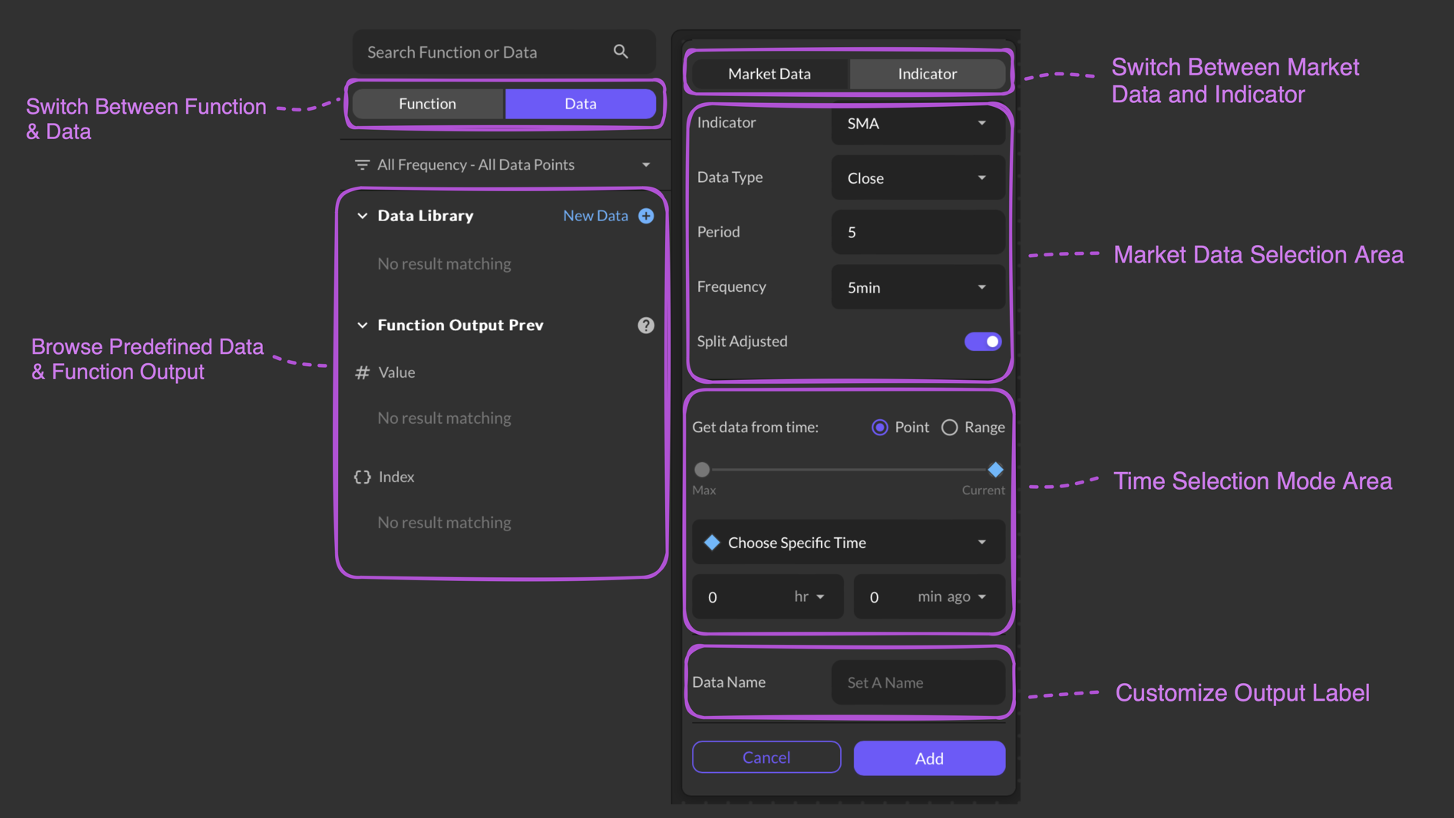
Accessible from both the Start Component and Data Library, the New Data button effortlessly leads users to the Data Setting Board. With Market and Indicator tabs, users can swiftly choose between market data or indicators, set preferred time frames, and define settings for an optimal strategy.
 ### Input Parameter
Access historical market data.
Choose from OHLCV (Open, Close, High, Low & Volume)
Select a time frequency from the available list.
Choose between split-adjusted or current market price.
Utilize technical indicators.
Select an indicator from the available list.
Choose from OHLCV (Open, Close, High, Low & Volume)
Emter a number to adjust analysis period.
Select a time frequency from the available list.
Choose between split-adjusted or current market price.
Select a time point or time range
* Choose Specific Time
* Choose Defined Time
* Start at Specific Time
* Start at Defined Time
### Input Parameter
Access historical market data.
Choose from OHLCV (Open, Close, High, Low & Volume)
Select a time frequency from the available list.
Choose between split-adjusted or current market price.
Utilize technical indicators.
Select an indicator from the available list.
Choose from OHLCV (Open, Close, High, Low & Volume)
Emter a number to adjust analysis period.
Select a time frequency from the available list.
Choose between split-adjusted or current market price.
Select a time point or time range
* Choose Specific Time
* Choose Defined Time
* Start at Specific Time
* Start at Defined Time
* Backward Period
* Forward Period
* End at Defined Time
Select Hour and Minutes from the dropdown list. Max defaults is 250 days.
Users are required to provide a name for their data.