

Live Trading
Dive into real-time trading with Live Trading. Just like setting an alarm, this feature schedules trading sessions for quick strategy execution. With live data, you get detailed reports including dynamic stock charts and buy/sell signals. Plus, easily interact with the signals—clicking them shifts the Stock Market chart to show buys in purple and sells in green. It’s user-friendly, like the watcher interface. Select a ticker and access company overviews and news. You can also switch to the watchlist feature effortlessly. Experience the simplicity and power of Live Trading for informed decisions and precise execution.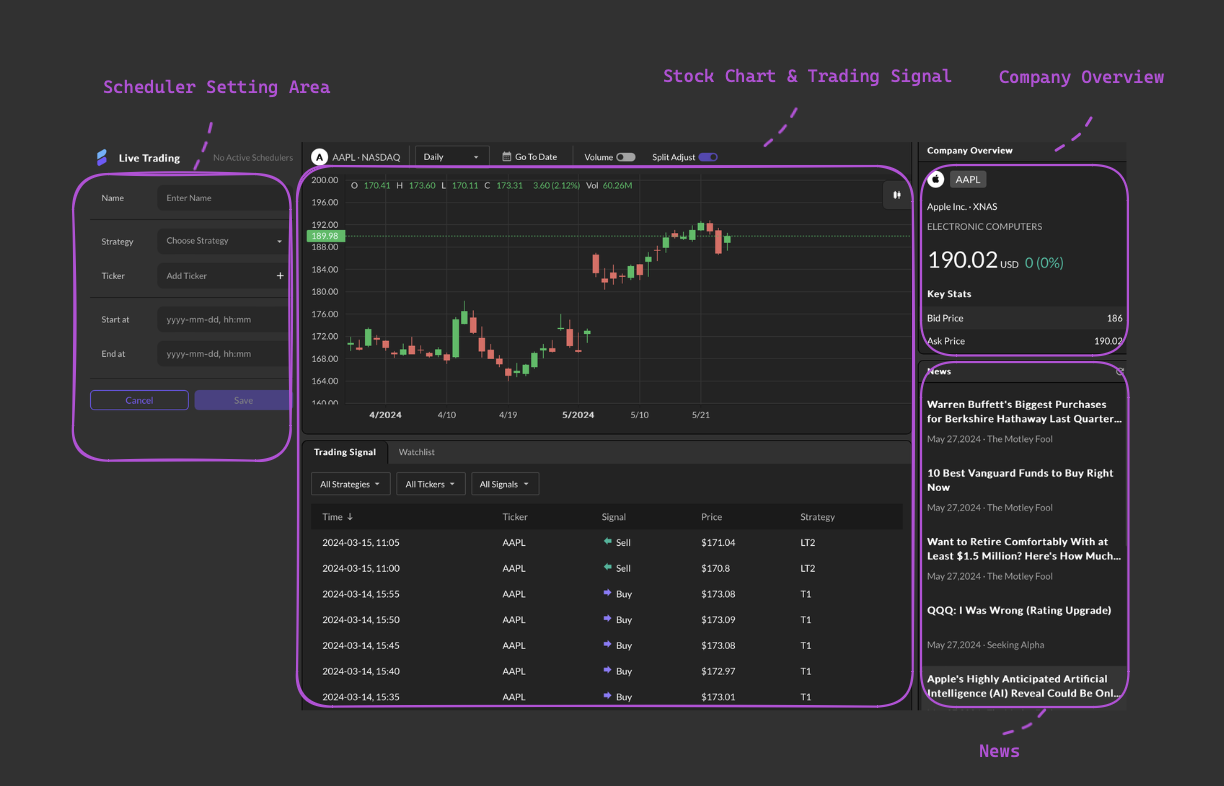
Simple Steps
Initiate a live trading by following these steps.1
Create a New Strategy
Begin by crafting one or more strategies under “Create New Strategy” on the Dashboard page.
2
Initiate Live Trading Schedule
Schedule Live Trading either by heading to the Dashboard and clicking on “Schedule Live Trading” or directly after completing a backtest.
3
Configure Schedule Details
After adding a Live Trading Scheduler on the left, fill in the required session details, such as the session name, selected strategy, market, and targeted stock. Additionally, monitor the status of each Scheduler in the top right corner of its information box, displaying whether it is “Running,” “Stopped,” or “Completed.”
4
Explore Live Trading Performance
Once scheduled, explore the stock market chart on the right side of the page. Clicking on “Buy” or “Sell” in the Trading signal area tags the chart accordingly, allowing you to track your trading decisions in real-time. Additionally, the Buy/Sell table provides detailed insights into each transaction, including time, ticker, signal, price, and strategy, ensuring comprehensive analysis of your trading activity.
Input Parameter
Scheduler Setting
required
Define a label for this Live Trading.
required
Select a predefined strategy from the available list.
required
Select a stock market from the available list.
required
Select a ticker from the available list.
Get default frequency from strategy.
Auto Ending Scheduler
Users can activate Auto Ending Scheduler with a button click or set start and end times manually for precise session control.required
Select a start date and time from the calendar.
required
Select a end date and time from the calendar.