

Introduction
The Generate Strategy feature simplifies the process of creating strategies. Users can automatically generate strategies by selecting preferred timeframes and indicators or patterns through the Add Indicator feature in the stock chart interface.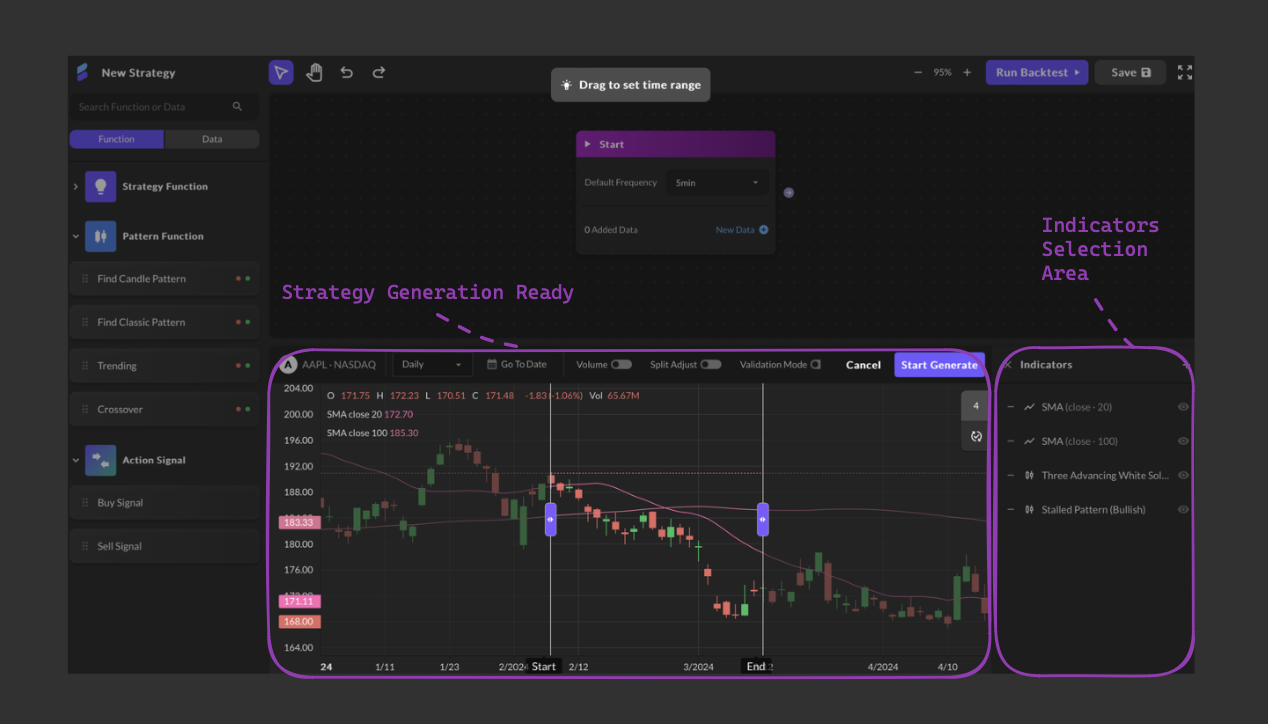
Usage Instructions:
- Select Indicators and Patterns: Choose your preferred indicators and patterns for analysis.
- Trigger Generate Strategy: Click the “Generate Strategy” icon in the top right corner of the stock chart.
- Adjust Analysis Section: Movable “Start” and “End” bars will appear on the stock chart. Adjust these bars to modify the analyzed section.
- Add Key Points: Within the set range, a “Key Point” marker appears on each candle bar as the mouse moves. Click to add a Key Point, and use the cross icon to remove it. Key Points outside the adjusted range turn red and are automatically removed when the user stops dragging the bar.
- Start Generate: Click “Start Generate” to open a pop-up window with multiple strategies and descriptions. Users can choose “Reset Conditions” to go back to the previous steps or “More Strategies” for new options. Closing the pop-up will stop these strategies from showing in the New Strategy interface. The same content will be displayed next time until the conditions are reset from the beginning steps.